This documentation is provided for informational purposes only and demonstrates how to configure and use our API with third-party AI chat interfaces. Any third-party software, websites, or services mentioned are not operated, controlled, or endorsed by us.
Introduction to Codex
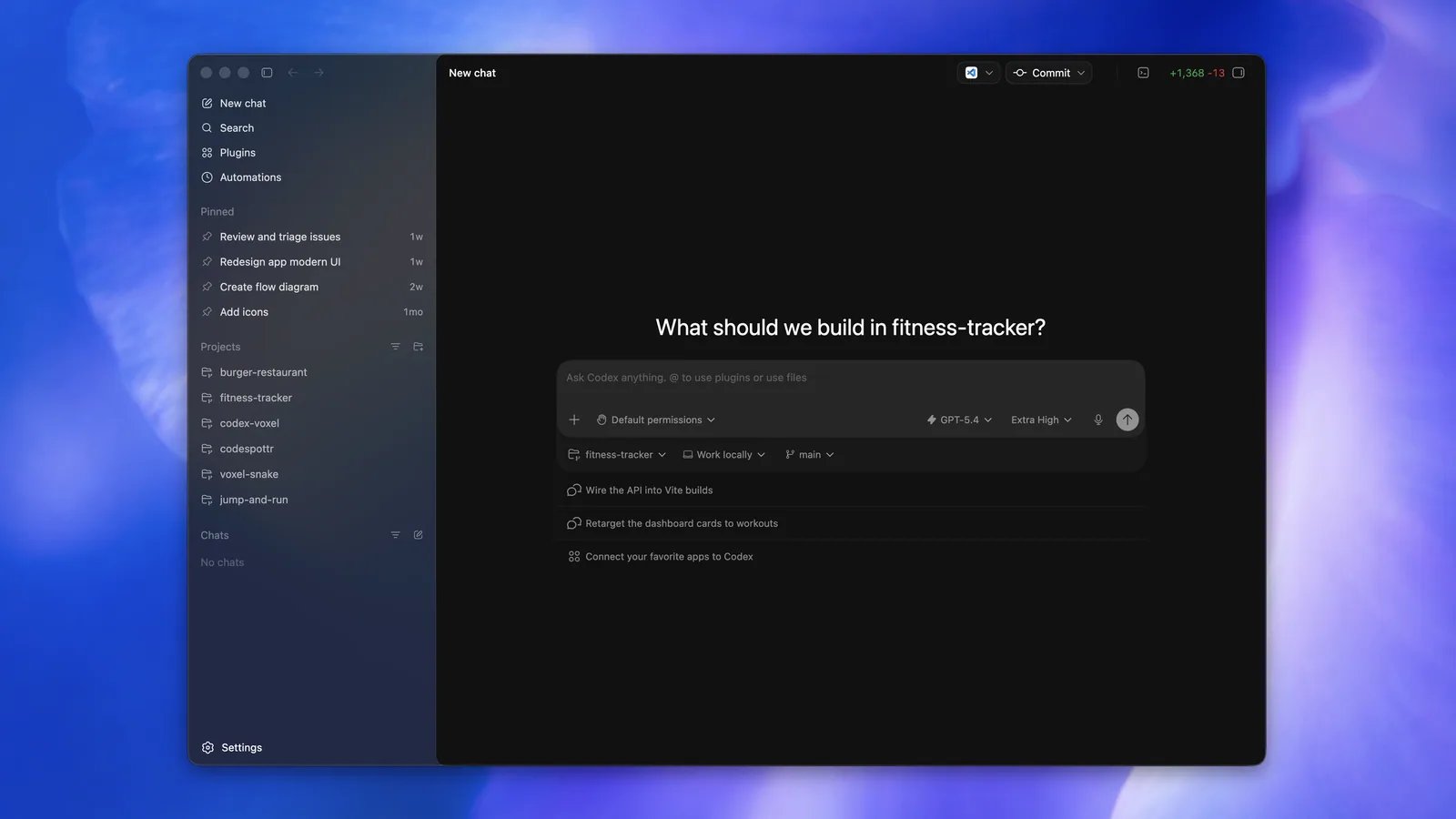
- Write code: Describe what you want to build, and Codex generates code that matches your intent, adapting to your existing project structure and conventions.
- Understand unfamiliar codebases: Codex can read and explain complex or legacy code, helping you grasp how teams organize systems.
- Review code: Codex analyzes code to identify potential bugs, logic errors, and unhandled edge cases.
- Debug and fix problems: When something breaks, Codex helps trace failures, diagnose root causes, and suggest targeted fixes.
- Automate development tasks: Codex can run repetitive workflows such as refactoring, testing, migrations, and setup tasks so you can focus on higher-level engineering work.
Step
1
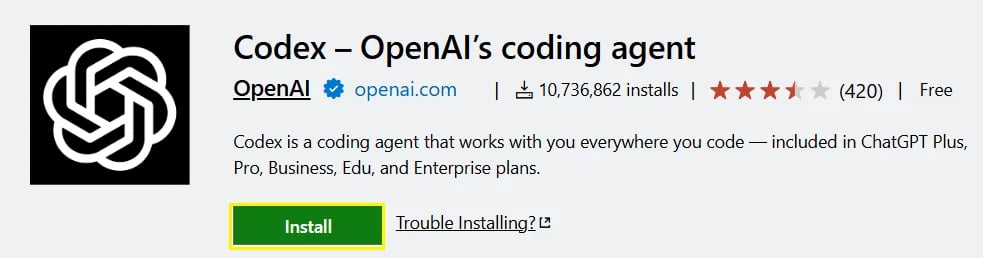
Install Codex
- CLI - Node.js
- App
- VS Code Extension
You can manually install Node.js and the corresponding coding agent:Install the newest LTS version of Node.js.After installation is complete, open the terminal (Windows users use PowerShell) and check the version number.Verify the installation.If the version number is displayed correctly, the installation is successful.
- macOS, Linux, Windows:
2
Install Codex
- CLI - Node.js
- App
- VS Code Extension
You can manually install Node.js and the corresponding coding agent:Install the newest LTS version of Node.js.After installation is complete, open the terminal (Windows users use PowerShell) and check the version number.Verify the installation.If the version number is displayed correctly, the installation is successful.
- macOS, Linux, Windows:
3
Configure Codex
Codex uses the You can replace the “model” field with any model that is compatible with the OpenAI format: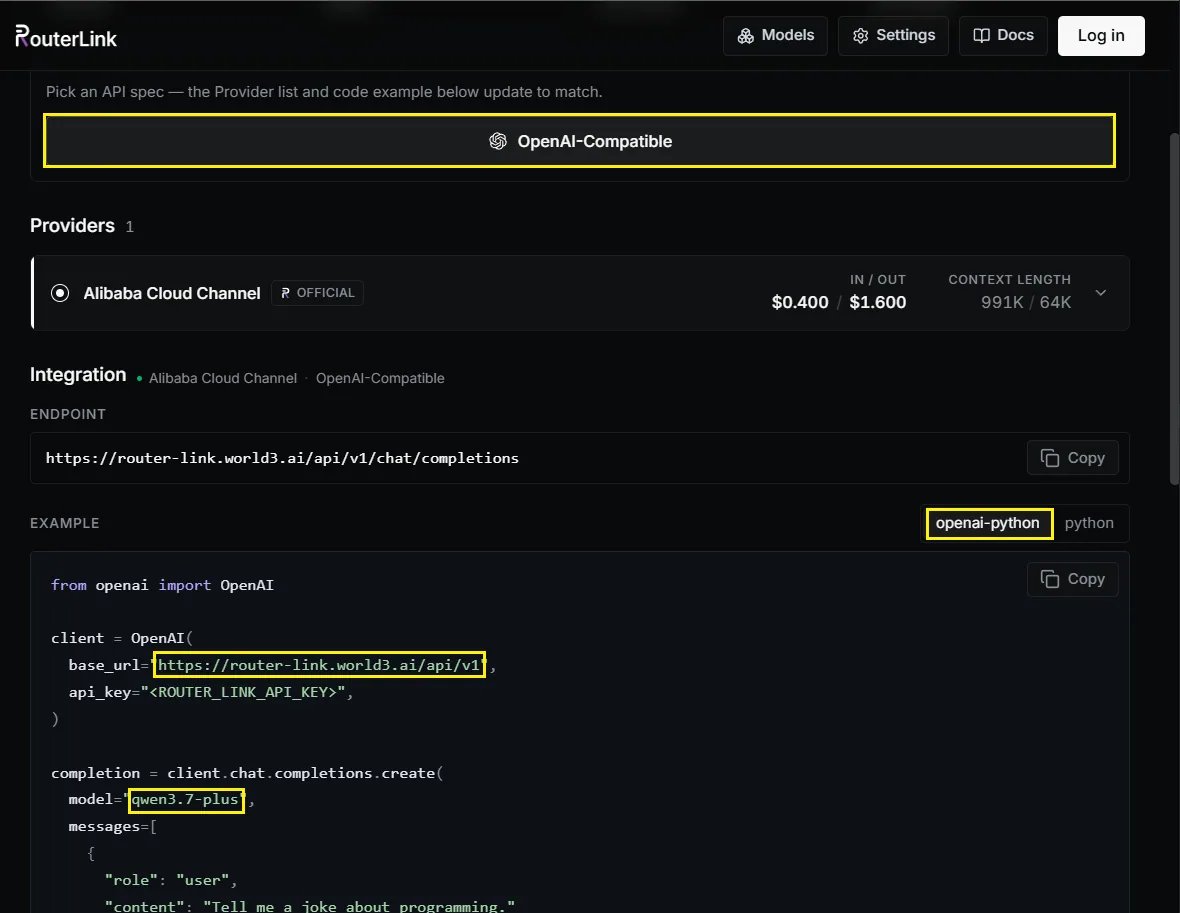
config.toml file to parse provider parameters. Please locate and create/edit this file according to your operating system.Edit or create config.toml fileOn macOS & Linux: ~/.codex/config.tomlOn Windows: C:\Users\<USERNAME>\.codex\config.tomlDelete the previous content and replace it with the following.Configuration file:auth.json file. Codex uses this file to read the API key.On macOS & Linux: ~/.codex/auth.jsonOn Windows: C:\Users\<USERNAME>\.codex\auth.jsonMake sure to replace <X6_API_KEY> with your API key from x6.ai. When replacing it, do not keep the angle brackets < and >.4
Codex Loading and Validation
- CLI
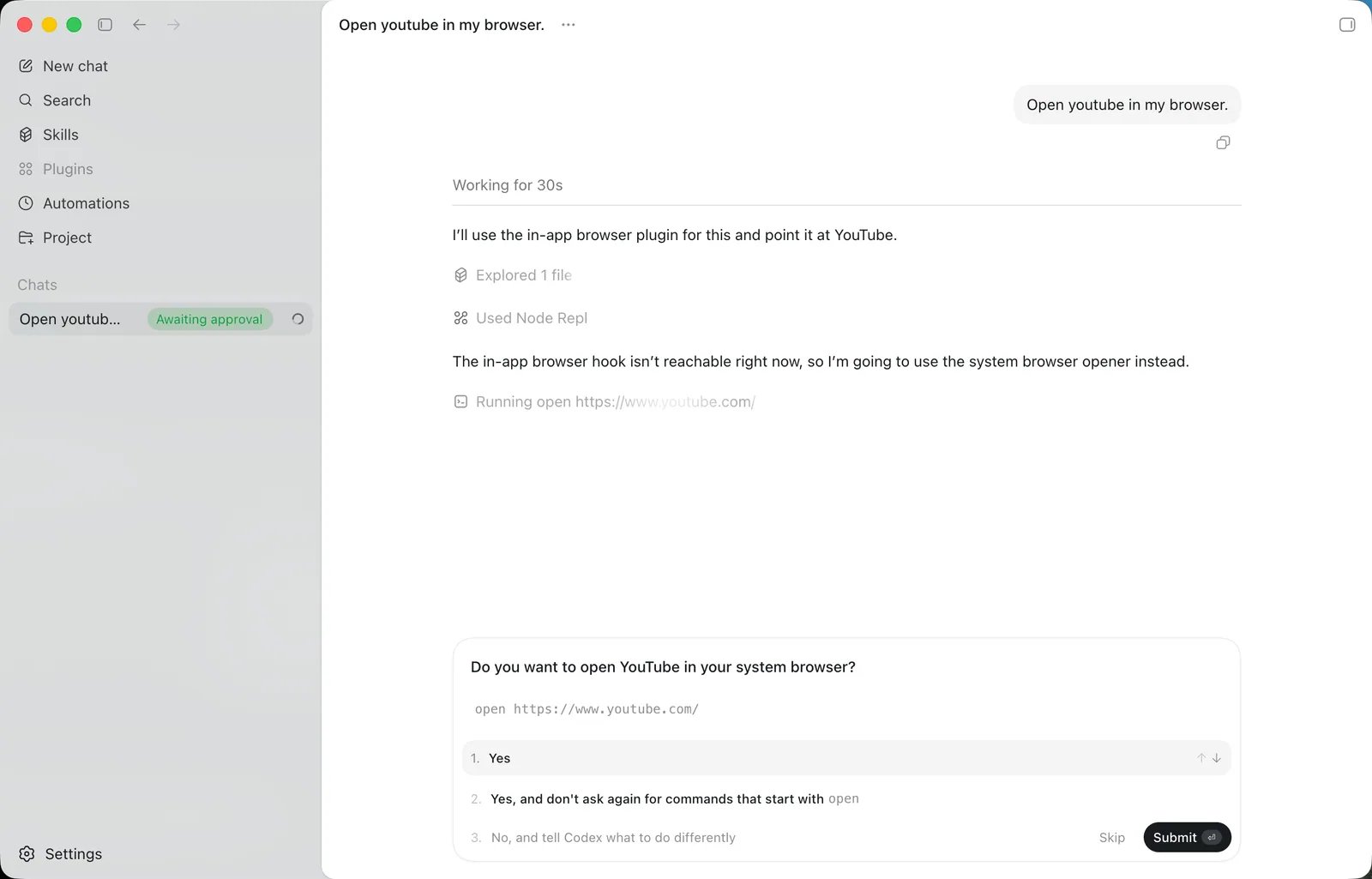
- App
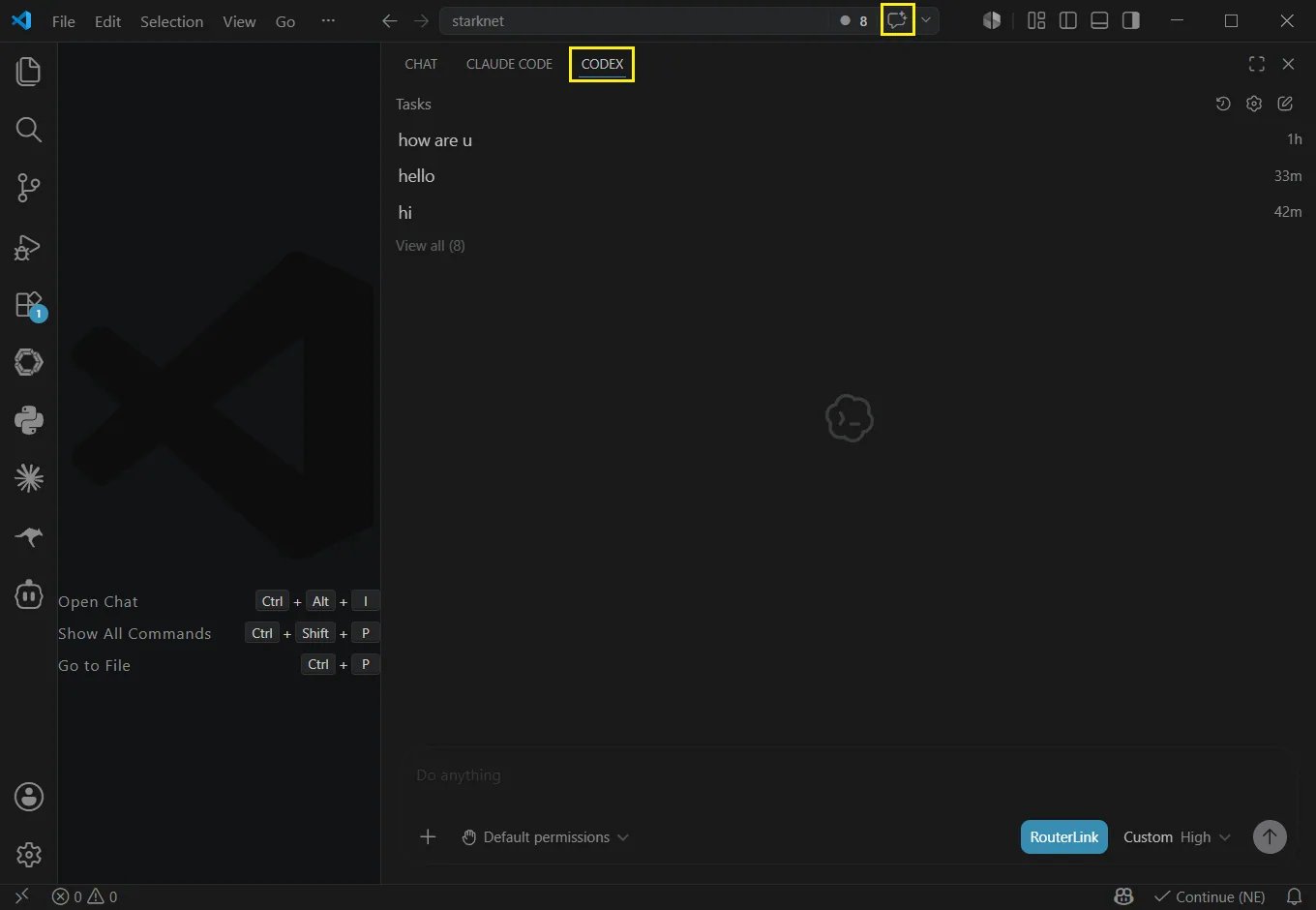
- VS Code Extension
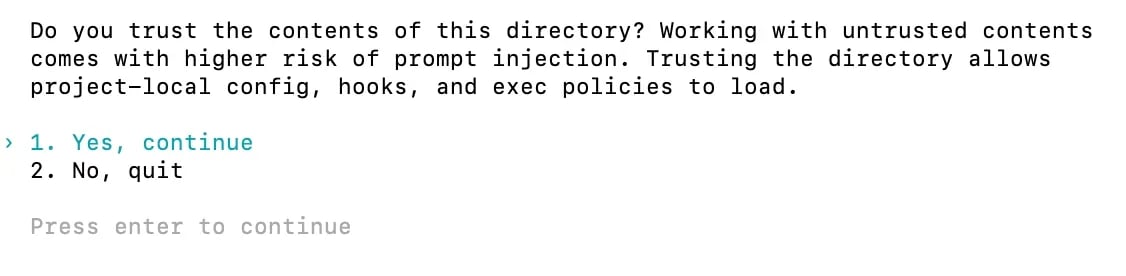
Windows users may encounter issues running the software due to missing VC runtime libraries. Please download and install this software.Navigate to your code working directory and run the
codex command in the terminal