> ## Documentation Index
> Fetch the complete documentation index at: https://docs.preview.x6.ai/llms.txt
> Use this file to discover all available pages before exploring further.
# VS Code
> This documentation is provided for informational purposes only and demonstrates how to configure and use our API with third-party AI chat interfaces. Any third-party software, websites, or services mentioned are not operated, controlled, or endorsed by us.
# **Introduction to VS Code**
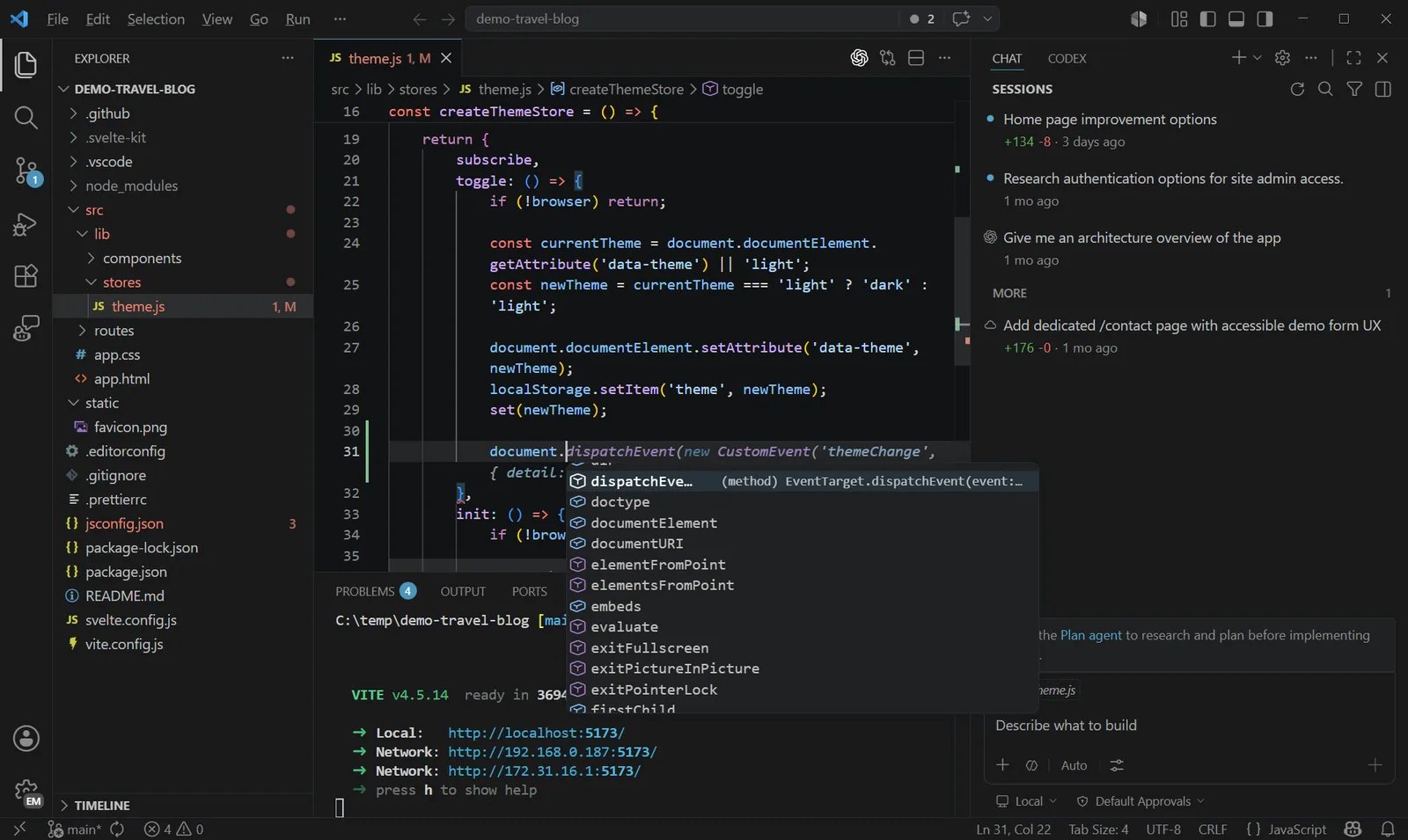 [Visual Studio Code](https://code.visualstudio.com/) is a distribution of the `Code - OSS` repository with Microsoft-specific customizations released under a traditional [Microsoft product license](https://code.visualstudio.com/License/).
[Visual Studio Code](https://code.visualstudio.com/) combines the simplicity of a code editor with what developers need for their core edit-build-debug cycle. It provides comprehensive code editing, navigation, and understanding support along with lightweight debugging, a rich extensibility model, and lightweight integration with existing tools.
# **Step**
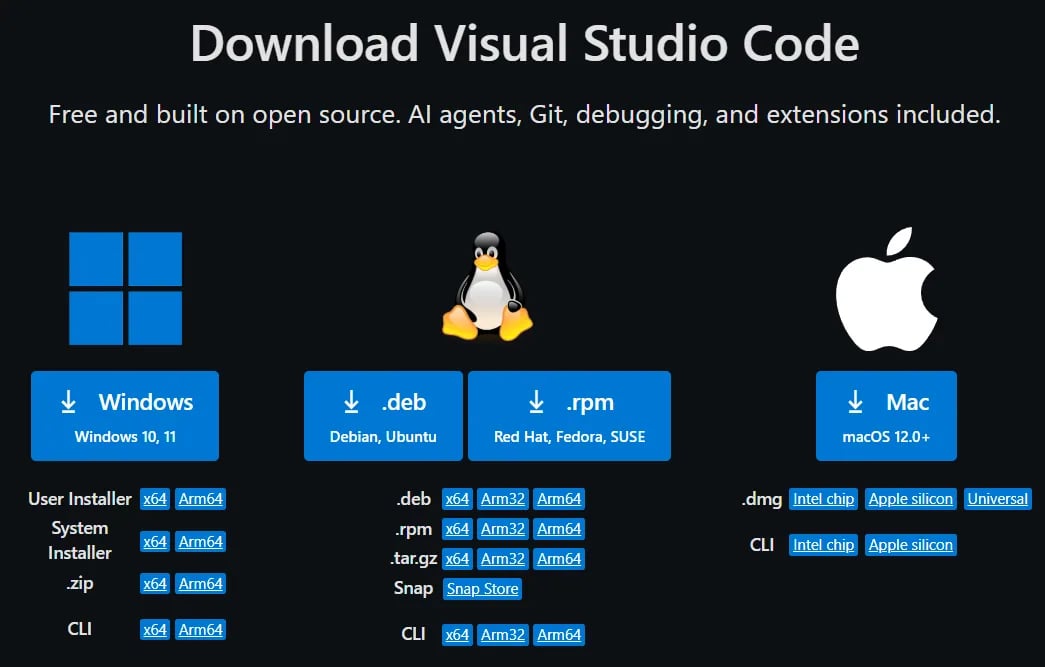
Visual Studio Code is updated monthly with new features and bug fixes. You can download it for Windows, macOS, and Linux on [Visual Studio Code's website](https://code.visualstudio.com/Download). To get the latest releases every day, install the [Insiders build](https://code.visualstudio.com/insiders).
[Visual Studio Code](https://code.visualstudio.com/) is a distribution of the `Code - OSS` repository with Microsoft-specific customizations released under a traditional [Microsoft product license](https://code.visualstudio.com/License/).
[Visual Studio Code](https://code.visualstudio.com/) combines the simplicity of a code editor with what developers need for their core edit-build-debug cycle. It provides comprehensive code editing, navigation, and understanding support along with lightweight debugging, a rich extensibility model, and lightweight integration with existing tools.
# **Step**
Visual Studio Code is updated monthly with new features and bug fixes. You can download it for Windows, macOS, and Linux on [Visual Studio Code's website](https://code.visualstudio.com/Download). To get the latest releases every day, install the [Insiders build](https://code.visualstudio.com/insiders).
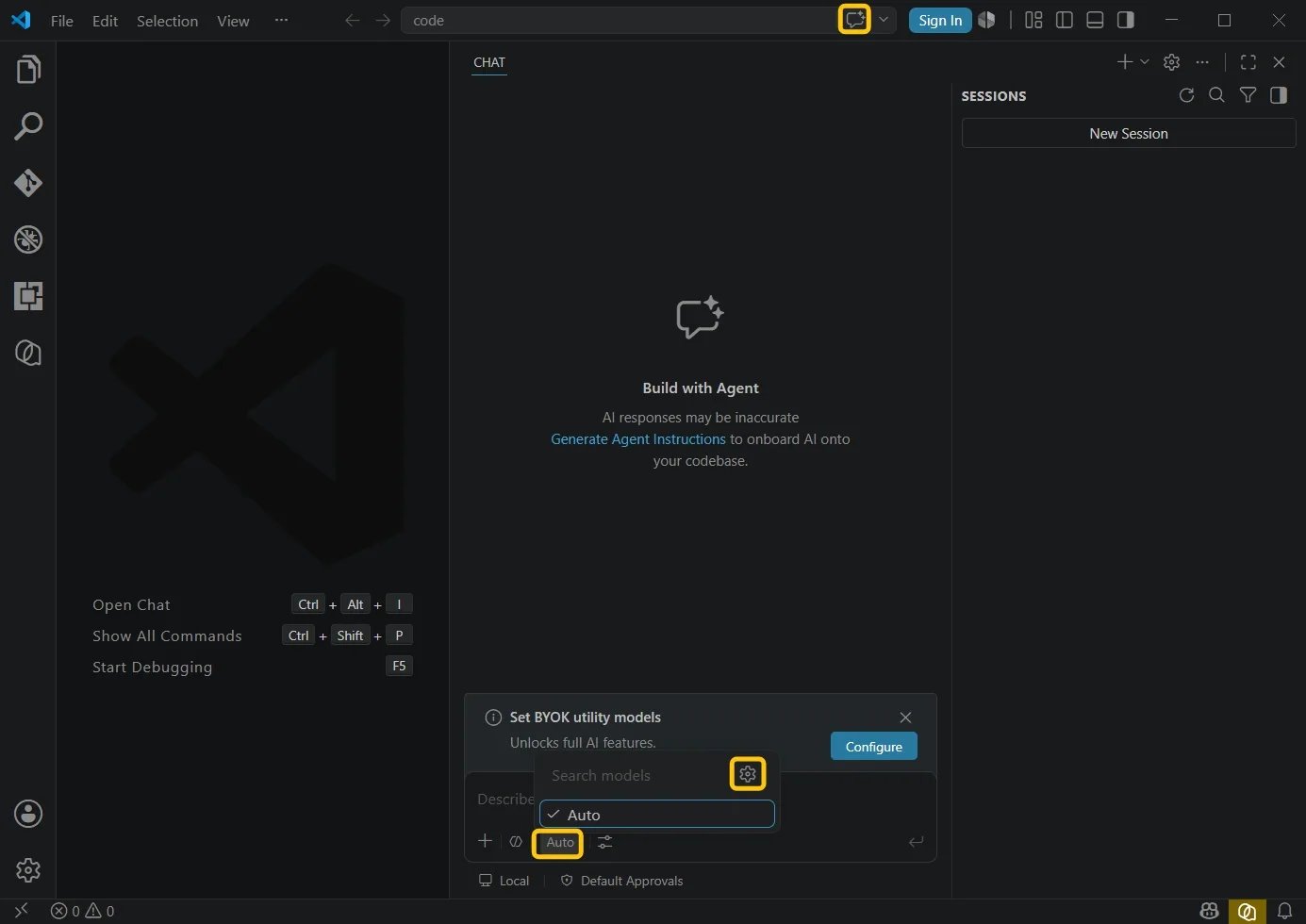
 Click the **Toggle Chat** button at the top (shortcut: `Ctrl+Alt+I`). Click the model at the bottom, then click the Settings icon.
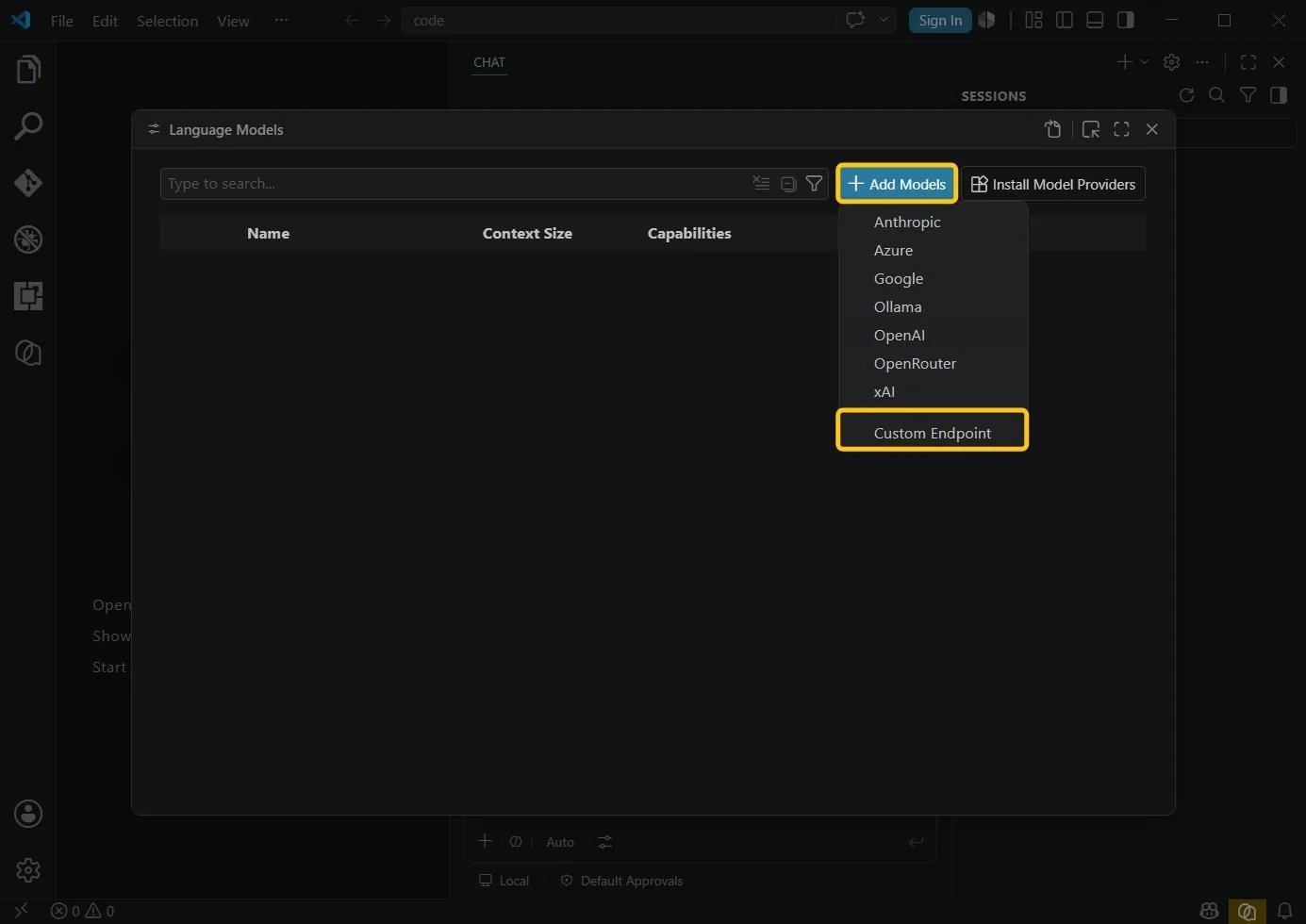
 Select **"Add Model"**, then click **"Custom Endpoint"**.
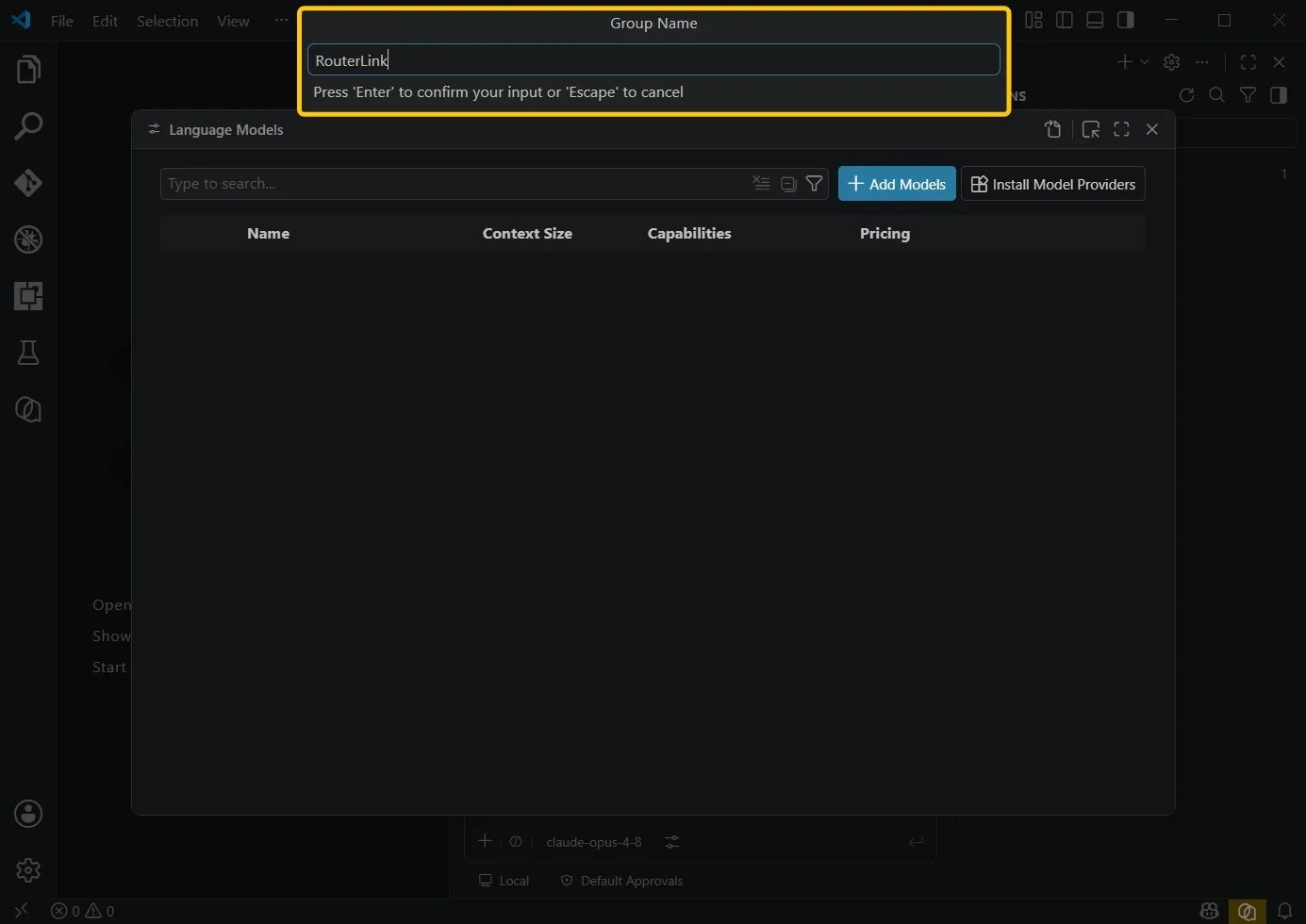
 Enter any group name.
 Enter your API key, which you can obtain from [x6.ai](https://x6.ai/settings/api-keys).
 If you want to use [models](https://x6.ai/models) from x6.ai:
For OpenAI-compatible models, select **Chat Completions**.
For Anthropic-compatible models, select **Messages API**.
If you want to use [models](https://x6.ai/models) from x6.ai:
For OpenAI-compatible models, select **Chat Completions**.
For Anthropic-compatible models, select **Messages API**.
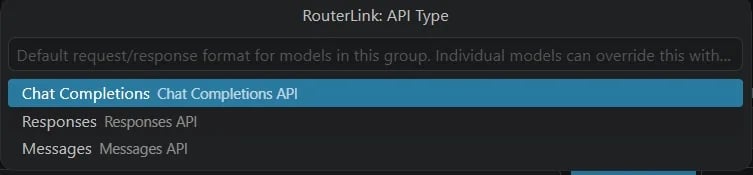
 Using GPT-5.5 as an example, enter the following information:
| **Field** | **Content** |
| :-------- | :------------------------------------------- |
| id | gpt-5.5 |
| name | gpt-5.5 |
| url | [https://api.x6.ai/v1](https://api.x6.ai/v1) |
Using GPT-5.5 as an example, enter the following information:
| **Field** | **Content** |
| :-------- | :------------------------------------------- |
| id | gpt-5.5 |
| name | gpt-5.5 |
| url | [https://api.x6.ai/v1](https://api.x6.ai/v1) |
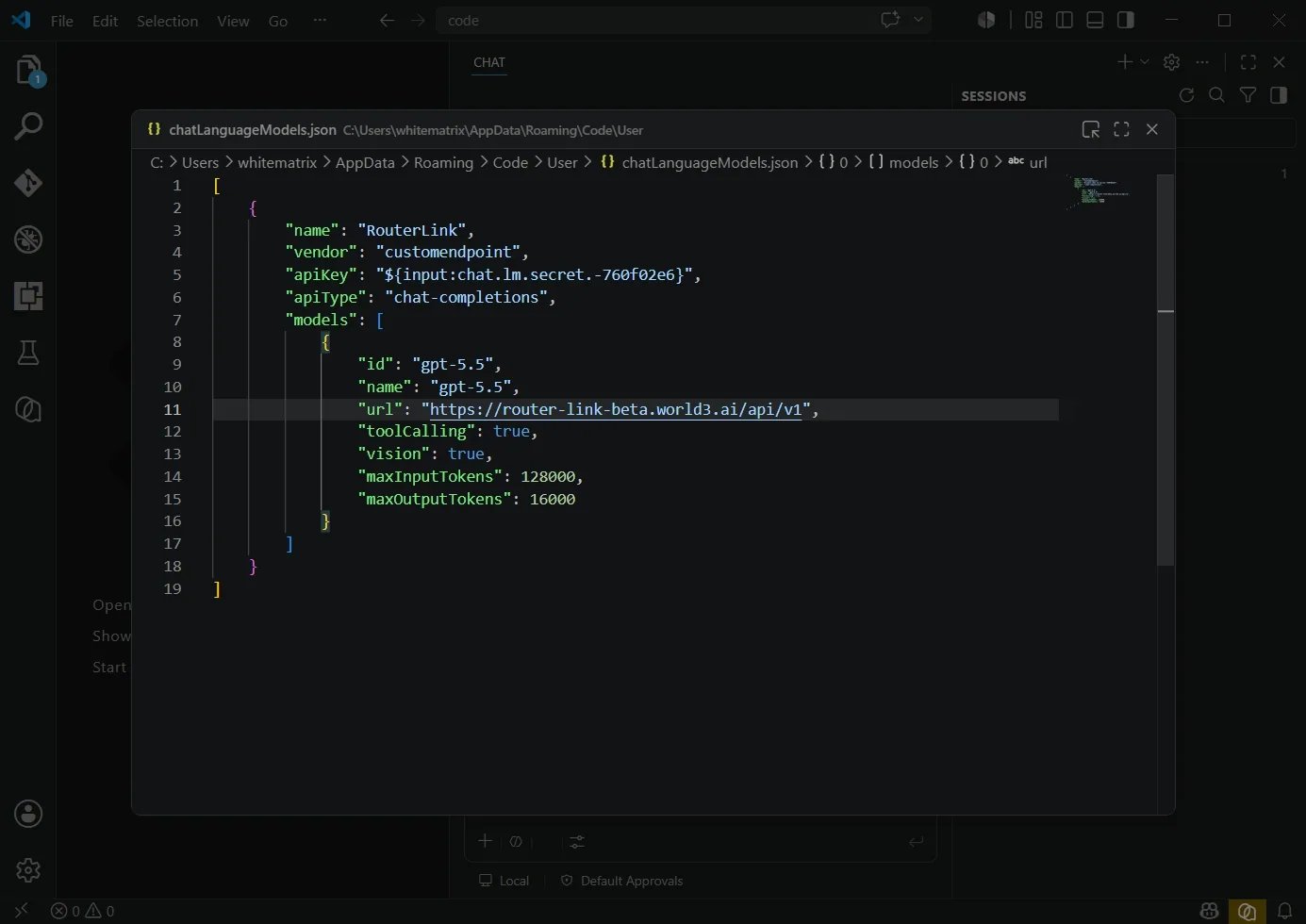
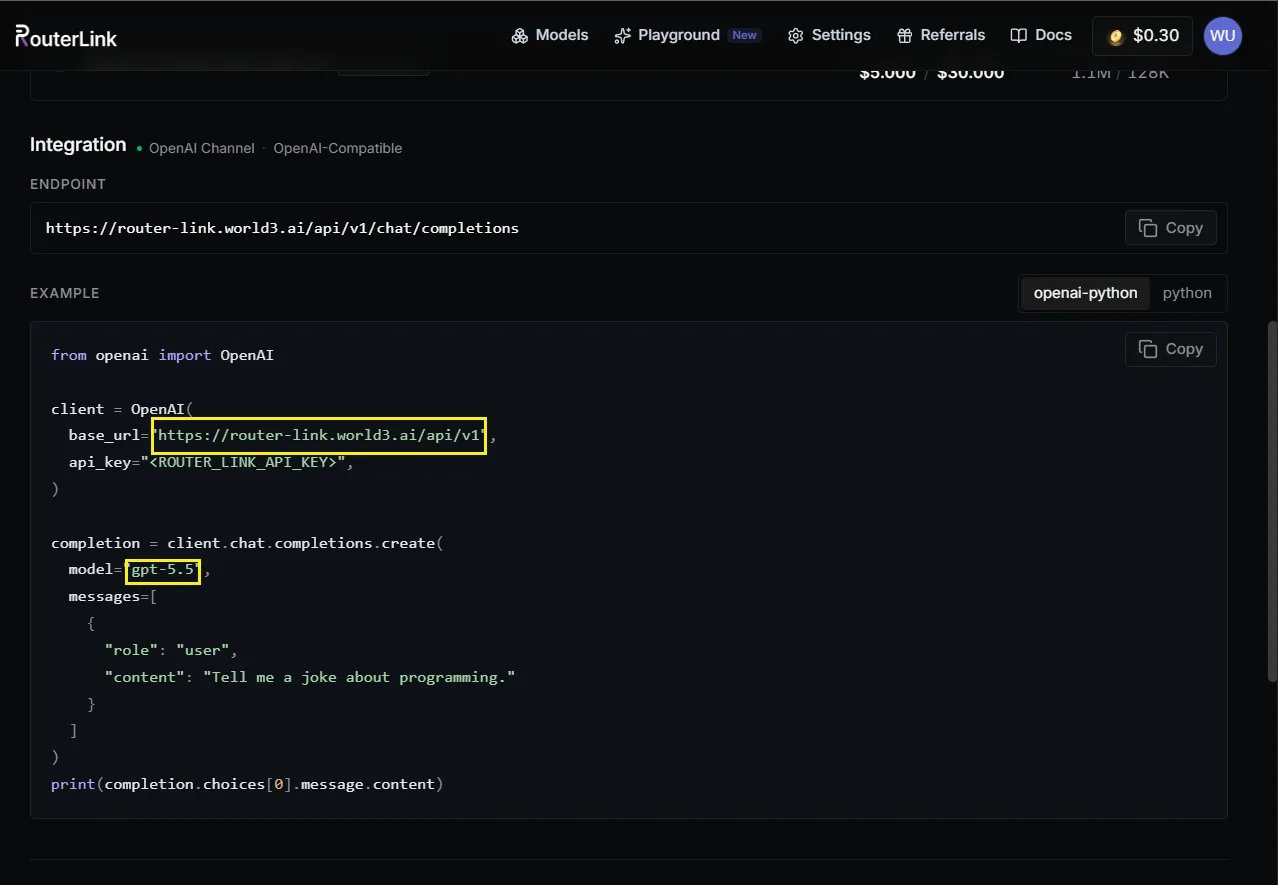 Press **Ctrl + S** to save, then click **Close**.
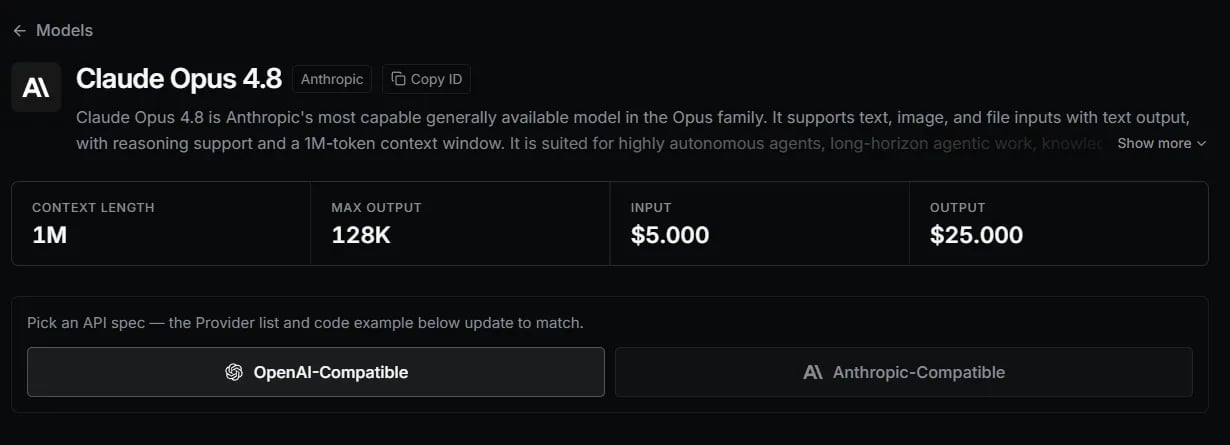
If you want to add another model, take **Claude Opus 4.8** as an example.
Then, click the model at the bottom again and click the **Settings** icon.
Press **Ctrl + S** to save, then click **Close**.
If you want to add another model, take **Claude Opus 4.8** as an example.
Then, click the model at the bottom again and click the **Settings** icon.
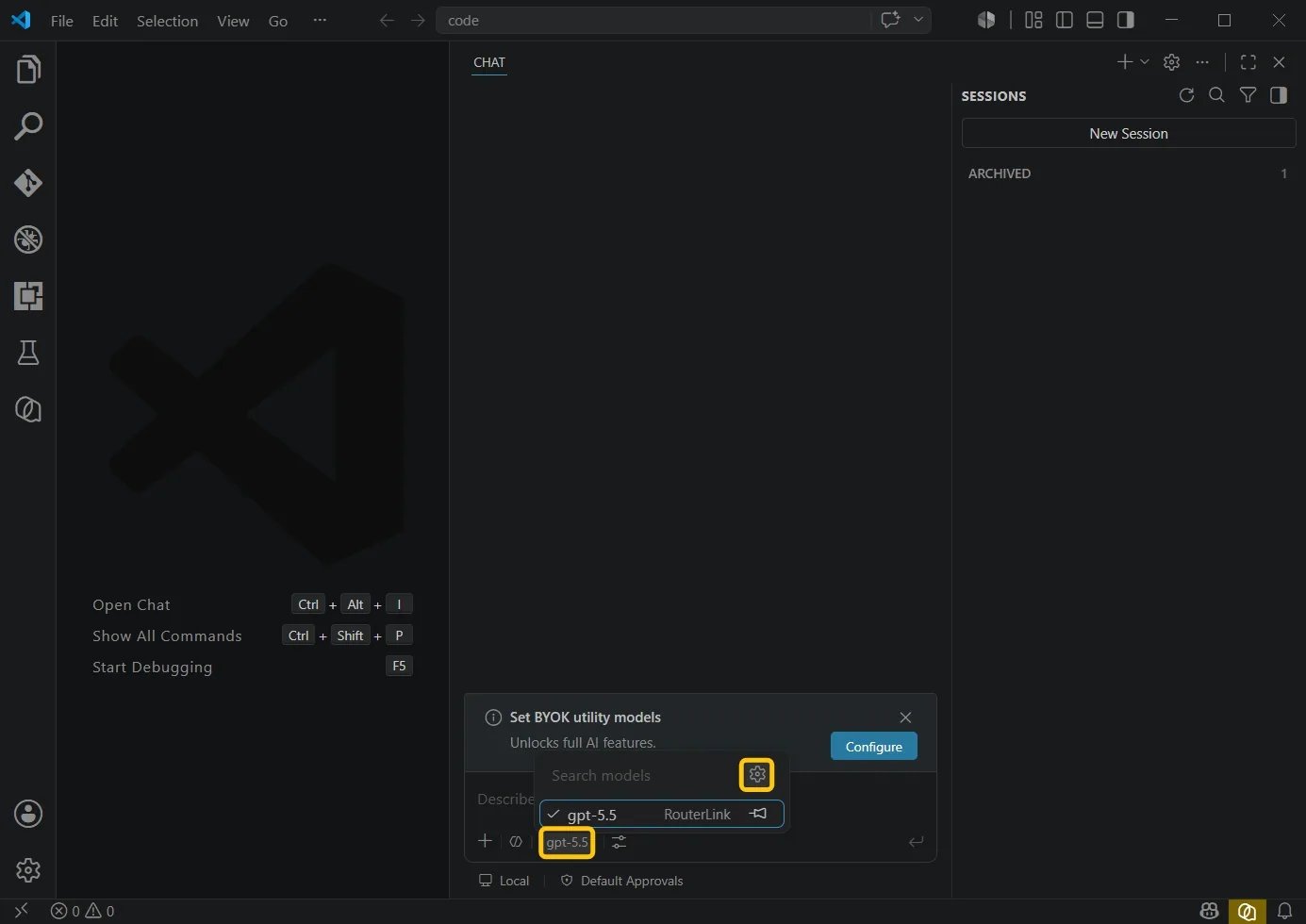 Repeat the previous steps, and select **Messages** as the **API Type**.
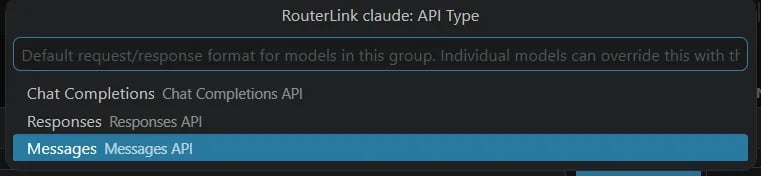 Enter the following information for the Anthropic-compatible **Claude Opus 4.8** model:
| **Field** | **Content** |
| :-------- | :------------------------------------- |
| id | claude-opus-4-8 |
| name | claude-opus-4-8 |
| url | [https://api.x6.ai](https://api.x6.ai) |
Enter the following information for the Anthropic-compatible **Claude Opus 4.8** model:
| **Field** | **Content** |
| :-------- | :------------------------------------- |
| id | claude-opus-4-8 |
| name | claude-opus-4-8 |
| url | [https://api.x6.ai](https://api.x6.ai) |
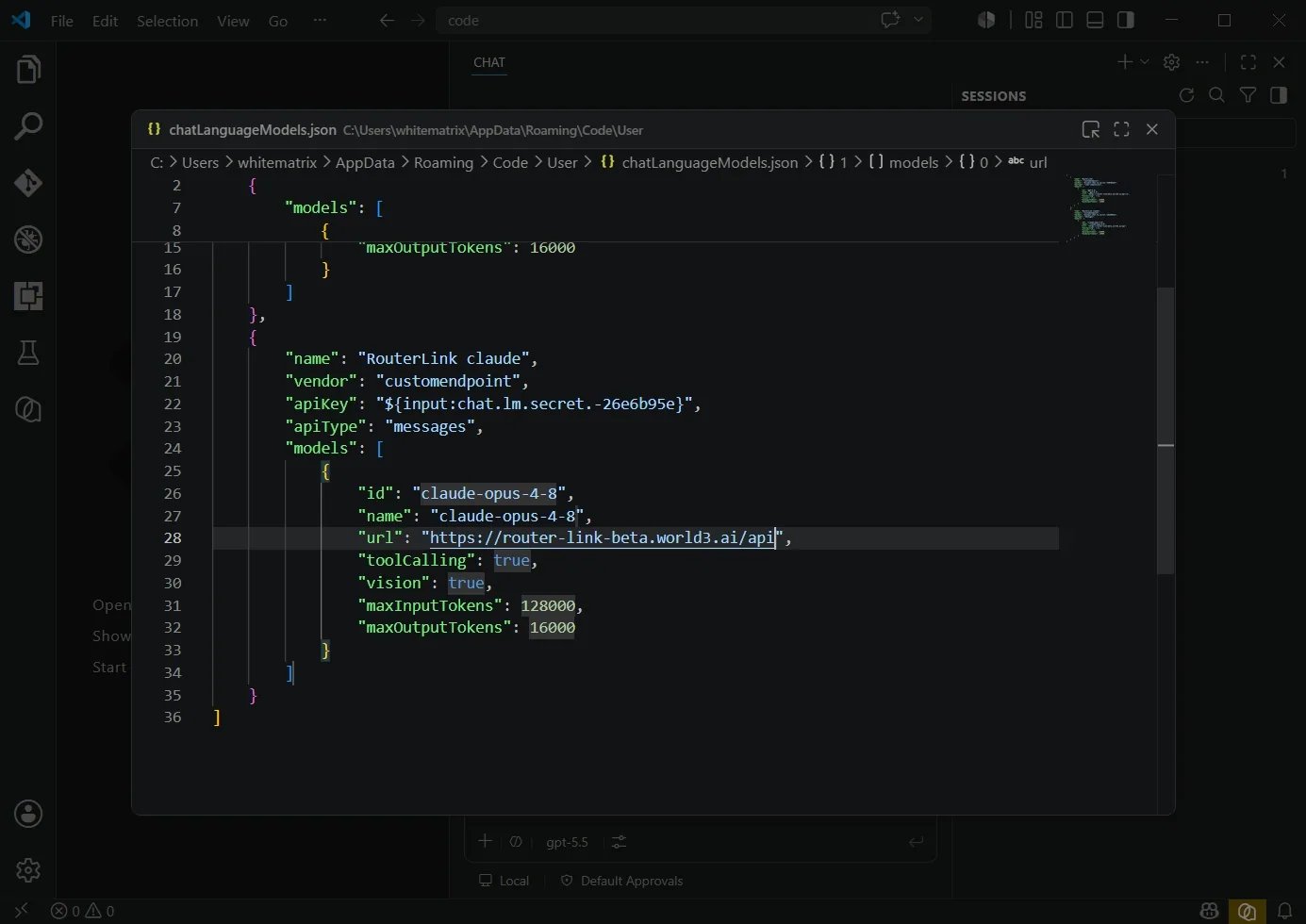
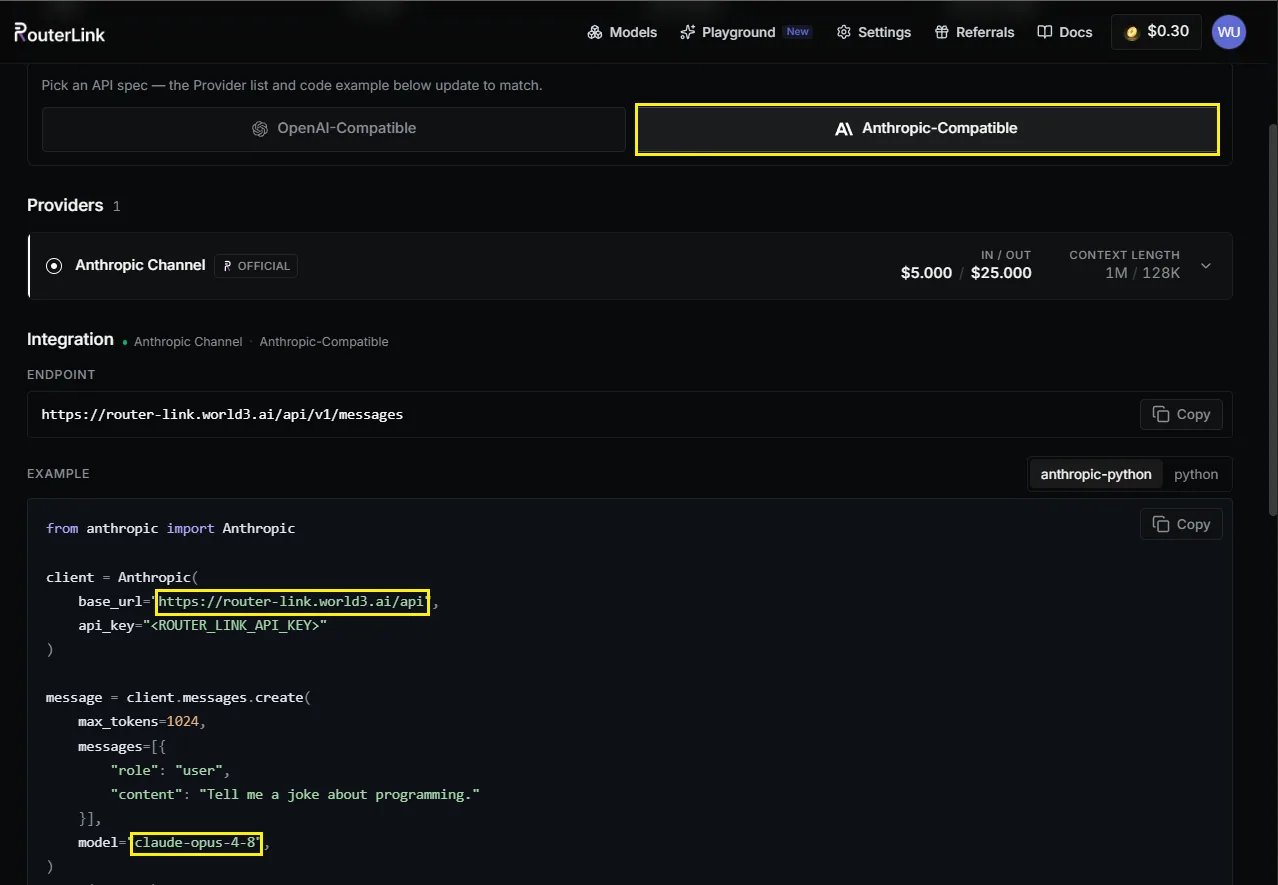 **Press Ctrl + S to save, then click Close.**
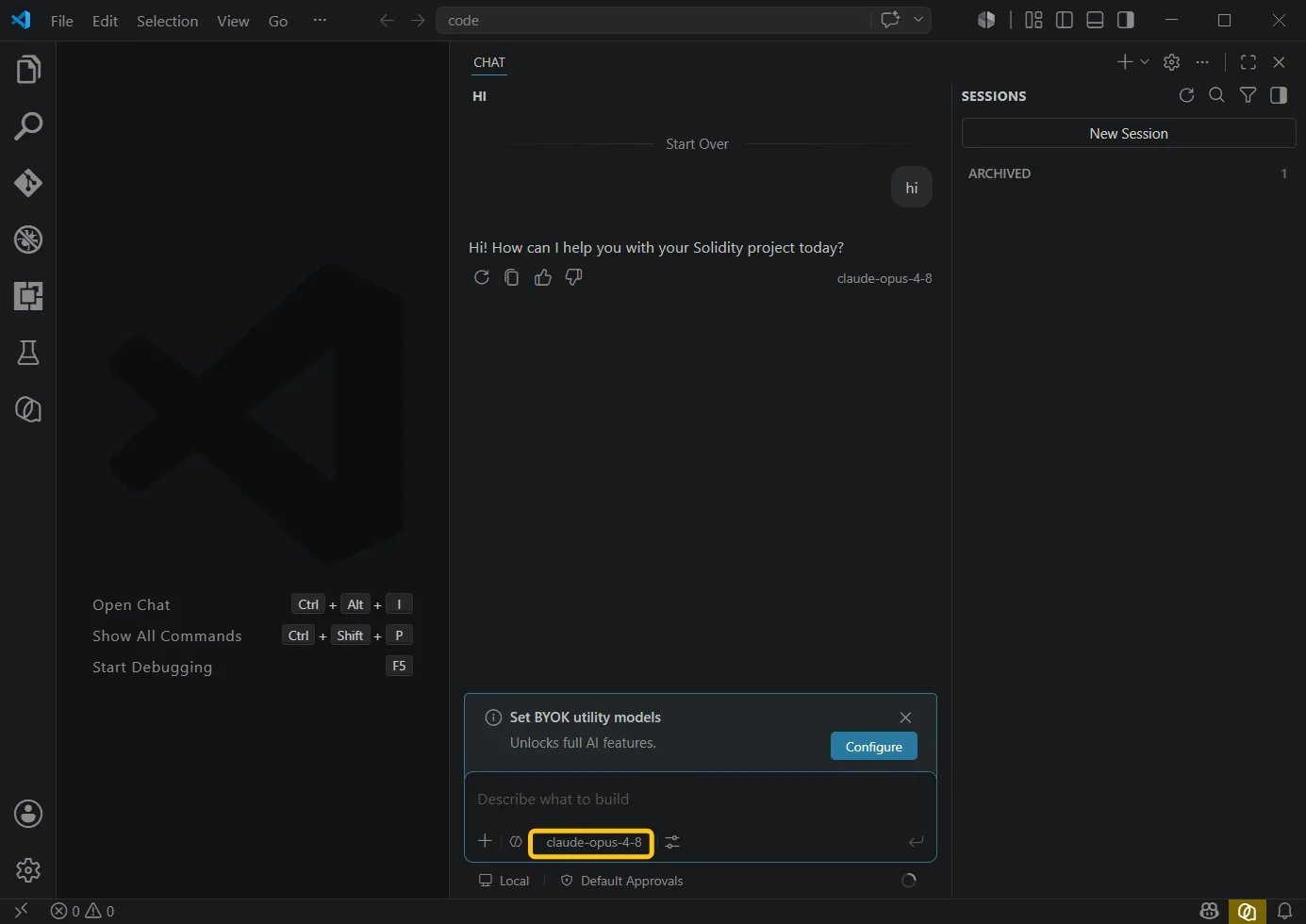
**Select the model you just configured from the bottom menu.**\
**You're now ready to start using it.**
**Press Ctrl + S to save, then click Close.**
**Select the model you just configured from the bottom menu.**\
**You're now ready to start using it.**